The Member Filter Builder dialog box enables you to build complex member filters without having to remember or look up the proper syntax. On the Cube Views page, select a Cube View. Select the Rows and Columns slider and then select a row or column header. In the Member Filters tab, click the Member Filter Builder icon.
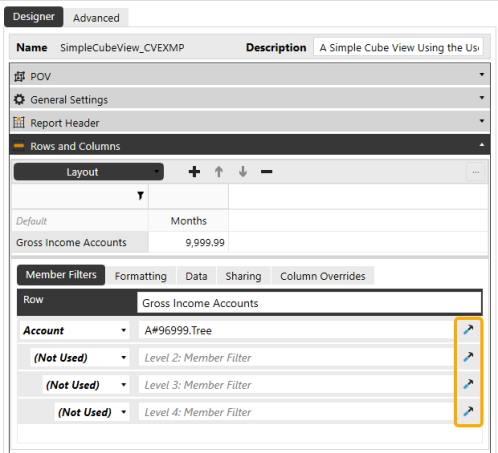
Navigation
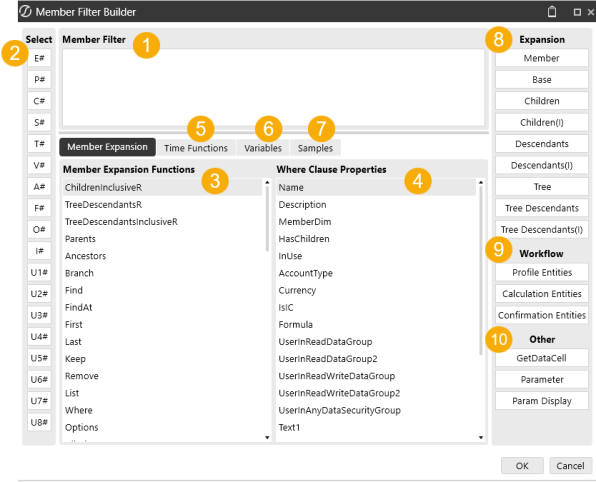
Hover over the items in the Member Filter Builder dialog box for additional information.
-
Member Filter: Location where the member filter is built. Type in this section or use the other items in the dialog box to enter information into the field.
-
Dimension Tokens: There is a button for each dimension that launches the appropriate selection dialog box.
NOTE: When searching for a member in the Select Member window, you can search by its name, alias, or description.
-
Member Expansion Functions: Double-click a member expansion to add it to the member filter.
-
Member Expansion Where Clause Properties: If you select Member Expansion Where, use the where clause properties to complete the expression.
Example: UD2#AllProducts.Children.Where(Name Contains Clubs)
-
Time Functions: Only applies to the Time dimension, such as T#POVPrior1. Double-click a time function to add it.
-
Variables: Double-click a system-wide substitution variable to add it.
-
Samples: This tab provides example syntax for complex queries and calculations, including member expansions, where clause and time expressions, GetDataCell and row/column calculations, custom member list expressions, and XFBR, XFCell, and XFGetMemberProperty.
-
Expansion: Commonly used member expansions added to the end of filters. Double-click the expansion to add it.
-
Workflow: Commonly used workflow member expansions used in Cube Views that point to a report, form, or dashboard and are affiliated with a specific Workflow Profile.
-
Other: Commonly used member filter functions that enable you to create calculated rows and columns or use a custom parameter to store member lists.
Member Expansion Tab
To reduce Cube View maintenance, use simple member expansions and connect your Cube Views to the metadata when complex expansions are needed. Avoid referencing individual members. Select a member expansion and double-click it to add the sample syntax to the Member Filter.
-
Reverse order expansions: These selections include ChildrenInclusiveR, TreeDescendantsR, and TreeDescendantsInclusiveR.
-
Where clauses: Enable further qualification of the results and can pull members based on properties such as text or name contains.
-
Remove functions: Removes some of the members from the results.
-
Parents: Returns the direct parent of the member. There may be multiple parents if there are alternate hierarchies.
-
Ancestors: Returns all members up the chain from the original member.
-
Options: Advanced option if you are a report builder familiar with the extensibility design in your application. This expansion is commonly used to focus on one portion of your Extensible Dimensionality.
This is not an exhaustive list of all the member expansions. Each expansion can also be found in the Samples tab. Hover over each to see the purpose of the function and a sample of the expected syntax.
Use the member filter to filter data by creating a list of restricted members. Member Filters can contain multiple member scripts. A member script queries a defined set of dimensional members. Members can be specified for any or all dimensions, and the primary dimension can also specify a member expansion formula, for example, Descendants.
Example: This member script returns the year 2022: T#2022.
Example: This member script has a member expansion that returns all income statement accounts: A#[Income Statement].Descendants.
If one or more dimensions in the member script have a dimension token, the remaining dimensions are pulled from the Cube View POV, the Global POV, or Workflow, Time and Scenario. In the member script, separate each dimension that has a token with a colon.
Example: Cb#GolfStream:E#Houston:P#Texas:C#Local:S#Budget:T#2022M3:V#YTD:A#60000:F#None:
O#Forms:IC#None: U1#Sales: U2#HybridXL: U3#Northeast: U4#SportsCo: U5#None: U6#None: U7#None: U8#None
Example: This Member Filter contains three different member scripts that returns the Actual, Budget, and Forecast scenarios: S#Actual, S#Budget, S#Forecast.
Time Functions Tab
Time is a fixed dimension and is based on the time dimension type associated with the application. OneStream has custom time dimensions, like weekly and monthly, that affect time functions and expansions. Time functions pivot the member, and time expansions extend the member.
Example: This time function displays the prior period of the time member in a Cube POV: T#POVPrior1
Example: This time expansion displays all months in the year 2022: T#2022.Months
Complete the following steps to add a time function from the Time Functions tab:
-
In the Member Filter Builder dialog box, select the Time Functions tab.
-
Select the type of time function desired. You can choose from the following options: All, POV, WF, Global, and General.
-
Double-click a function to populate it in the Member Filter field.
NOTE: Select the Samples tab to view more time functions.
The following time function example demonstrates a flexible syntax style. You can choose from a variety of time functions, but this example enables you to pivot easily on the year and period separately:
T#YearPrior1(|PovTime|)PeriodNext1 (|PovTime|)
-
Prior year from the POV time: T#YearPrior1(|PovTime|)
-
Next period from the POV time: PeriodNext1 (|PovTime|)
Variables Tab
Substitution variables are short scripts that use pipe characters to include a predefined substitution variable. They come with every installation of OneStream and cannot be edited. You do not need to create or maintain them. In the Variables tab, double-click a substitution variable to add it to a Member Filter.
Example: |WFProfile| would refresh to display the current Workflow Profile name.
Substitution variables can be used throughout the application. For Cube Views, you can use them for headers and footers, rows and columns, and Cube View page captions.
NOTE: Substitution variables are always referenced with pipes, for example, |POVTime|.
The Member Filter Builder dialog box includes substitution variables in the following categories:
-
POV: Cube POV
-
WF: Workflow POV
-
Global: Global POV
-
CV: Cube View POV
-
MF: Member Filter
-
General: Items not related to a POV
When using a substitution variable to return a member name, the prefix indicates where the value of the variable is pulled from. You can choose if it should refresh based on the Cube View POV (CV), Workflow POV (WF), Cube POV (POV), Member Filter (MF), or Global POV (Global).
You can choose if you want to display the member description, usually in headers and footers, by adding Desc as the suffix. Time has an added short description option that is set through the time profiles.
Example: |WFTimeDesc| returns the description Feb 2022, and |WFTimeShortDesc| returns the short description Feb.
Review the following common substitution variables:
-
Username that ran the report: |UserName|
-
Cube View name: |CVName|
-
Members text properties: |Text1|
-
Today's date: |DateDDMMYYYY|
TIP: In addition to the Variables tab, you can also copy a substitution variable from the Object Lookup dialog box. Select the Object Lookup  icon and go to Object Type > Substitution Variables.
Samples Tab
The Samples tab provides example syntax for more complex queries and calculations in the following categories:
-
Member Expansions
-
Where Clause Expressions
-
Time Expressions
-
GetDataCell Expressions
-
Column/Row Expressions
-
Custom Member List Expressions
-
XFBR, XFCell, and XFGetMemberProperty
Select a sample and double-click it to add the syntax to the Member Filter.
Where Clauses
Where clauses are commonly used in reporting to create a more flexible query. Select a where clause and double-click it to add the syntax to the Member Filter.
NOTE: You can view common Where clauses in the Samples tab.
The where clause can pull members based on properties:
-
Text properties
-
Portions of the description or name, for example, starts with or contains.
-
Security
-
Account types. This is Account dimension only.
-
Intercompany. This is Entity and Account dimension only.
-
Specific currency. This is Entity dimension only.
-
In use property
-
Has children
NOTE: Where(HasChildren = True) can only be used for the dimensions assigned to the cube on the default Scenario Type.
-
Has a member formula

